

This feature is currently in beta.
Who can verify content
Only organization admins and project admins can verify or unverify charts and dashboards. All other users can see which content is verified, but cannot change verification status themselves.Verifying a chart or dashboard
Admins can verify content directly from the chart or dashboard, or from the verification panel in project settings. Admins also have a dedicated verification panel under Project settings that lists all verified content and provides a central place to manage verification across the project.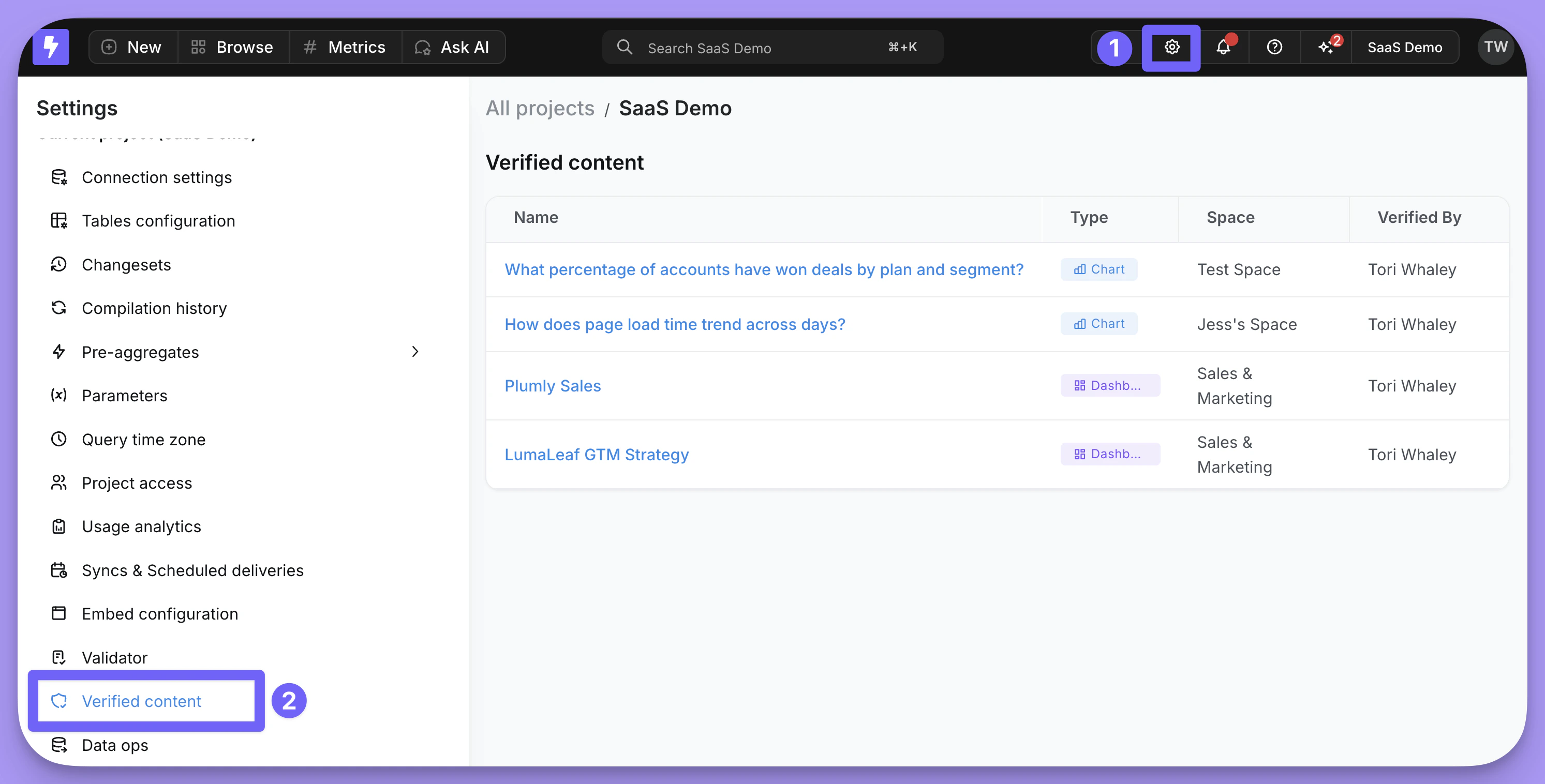
Where users see verified content
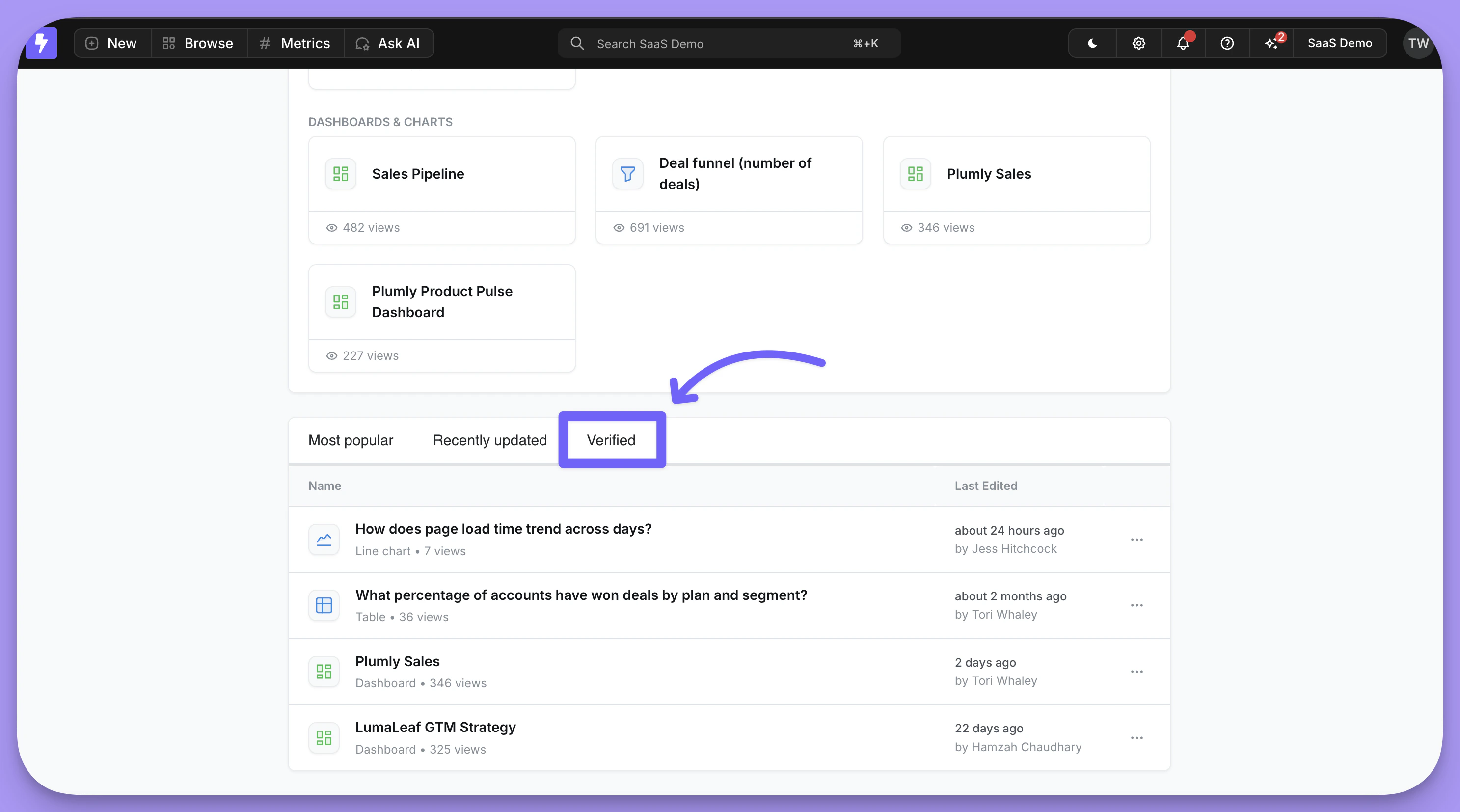
Once a chart or dashboard is verified, the green checkmark badge appears wherever that content is surfaced, including:- The homepage, so users can quickly spot approved content to start from
- Chart and dashboard listings
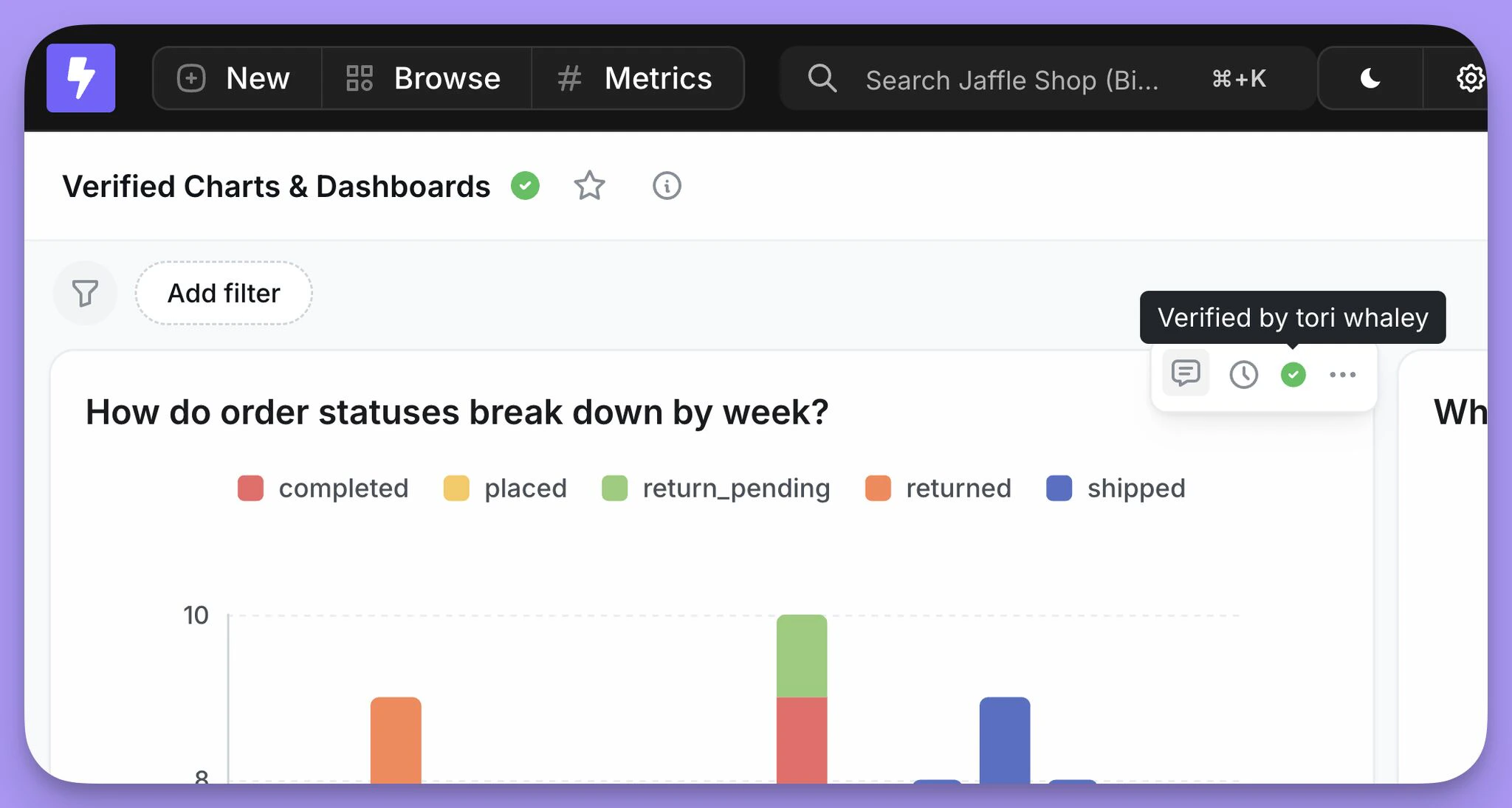
- Inside the chart or dashboard itself, along with the verifier’s name and verification timestamp
Verification is automatically removed when content changes
Verification is tied to the exact state of the content at the time it was verified. If anyone edits a verified chart or dashboard, the verification badge is automatically removed. An admin will need to review the updated version and re-verify it. This guarantees that a verified badge always reflects content that an admin has explicitly approved in its current form.Verification in charts and dashboards as code
Verification status is included in charts and dashboards as code. When you runlightdash download, verified content includes verification metadata right in the YAML, so you can see which downloaded files represent approved content.
Verification metadata is currently read-only in content-as-code workflows. Running
lightdash download includes verification status in the YAML, but lightdash upload does not write verification back. To apply or remove the verified badge, use the three-dot menu on a chart or dashboard in the Lightdash UI.Full CLI support for writing verification status is being tracked in this issue.